
《纳迪亚之宝 (Treasure of Nadia)》主角的父亲是一位世界著名的寻宝者,却在寻找神秘宝藏时突然离世,给主角留下了一栋房子和有关宝藏的线索。而主角早就想成为一名寻宝者,于是当场休学,来到了父亲生前停留的维拉德角,踏上了寻宝之旅。
但随着和岛上居民的接触,他发现宝藏背后藏着惊天的秘密,而父亲的死也没有那么简单……

《纳迪亚之宝》(Treasure of Nadia)是一款融合了冒险、解谜与角色扮演元素的独立游戏。在这个引人入胜的故事中,玩家将扮演一名勇敢的探险家,踏上一段寻找失落宝藏的非凡旅程。
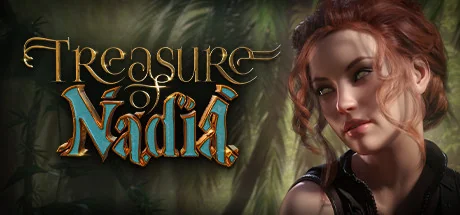
《纳迪亚之宝 (Treasure of Nadia)》主角的父亲是一位世界著名的寻宝者,却在寻找神秘宝藏时突然离世,给主角留下了一栋房子和有关宝藏的线索。而主角早就想成为一名寻宝者,于是当场休学,来到了父亲生前停留的维拉德角,踏上了寻宝之旅。
但随着和岛上居民的接触,他发现宝藏背后藏着惊天的秘密,而父亲的死也没有那么简单……

游戏中众多位性格鲜明的角色,玩家可以通过完成剧情和任务提升她们的好感度,解锁新的剧情和事件。

游戏世界遍布着各种谜题和机关,玩家需要运用智慧和观察力解开它们,获取关键物品和线索。

小镇建筑及其周边地区拥有广阔的地图,玩家可以自由探索各个区域,发现隐藏的宝藏和秘密。

玩家可以收集材料制作各种工具和装备,提升自己的探索能力和战斗实力。

主角
勇敢的寻宝者,为了寻找父亲留下的神秘宝藏而来到维拉德角。
重要角色之一
珍妮特的女儿
神秘的图书管理员
教堂的圣母
当地居民
神秘女性
设置修改速度为快速,开局去公园和迈克对话,点击地上的闪光点获得【石护符】。
往左走捡起宝箱钥匙,去图书馆找戴安娜卖掉护符获得金钱。
去灯塔找艾伯特获取任务,在酒吧过剧情后捡起【房间钥匙】。
与各个角色对话,完成任务提升好感度,解锁新的剧情内容。

The Hytera Flashburn utility is a niche, third-party software often used by radio technicians to interact with Hytera digital radios (like the MD782 or PD782) at a deeper level than standard Customer Programming Software (CPS) allows. It is primarily cited in community forums for recovering password-locked radios or performing low-level data dumps. Purpose of the "Fix"
The "fix" typically refers to bypassing a read/write password that prevents a user from modifying the radio's configuration (codeplug). If you have lost the password or purchased a locked secondhand radio, Flashburn provides a path to reset or retrieve it without factory-defaulting the firmware. Step-by-Step Recovery Process Preparation
Equipment: You need a standard Hytera PC37/PC38 programming cable.
Software: Download the Flashburn utility (ensure you have the version compatible with your radio model).
PC Connection: Connect the radio to your PC via USB and power it on. Data Extraction
Open Flashburn and select the option to Read "user_defined" data.
This process extracts the raw data partition (roughly 15-16MB) directly from the radio's flash memory.
Note: This can take anywhere from a few minutes to an hour depending on the connection speed. Applying the Fix (Password Reset)
Manual Search: Use a hex editor to search the extracted .bin or .dat file for specific strings that represent the codeplug password.
Brute Force/Decryption: Some advanced users utilize the extracted file to "brute force" the simple encryption used by Hytera for these locks.
Sniffing Alternative: An alternative "trick" is to run a firmware update via the official Hytera UpgradeKit while using a USB sniffer to capture the password as it is sent during the rewrite process. Verification
Once the password is recovered or the file is modified to remove the lock, use the standard Hytera CPS to "Write Frequency" or upload a fresh configuration. Risk Warning
Brick Risk: Interacting with flash memory using third-party tools like Flashburn carries a high risk of "bricking" the radio (making it permanently unbootable) if not done exactly right.
Official Support: If the radio is under warranty, it is often safer to contact an Authorized Hytera Dealer for a factory reset or password recovery. hytera flashburn fix
Introduction: The Frustration of a "Bricked" Radio
For any professional in public safety, utilities, or industrial logistics, a Hytera two-way radio is a lifeline. When it works, it’s a paragon of reliability. However, when firmware updates go wrong, users are often greeted by a dreaded error message from the programming software, Hytera FlashBurn.
Few things induce panic in a radio technician quite like a failed firmware flash. Suddenly, your $2,000 radio becomes a paperweight displaying nothing but a blank screen or a flashing red light. The error messages—“Connection Failed,” “Download Fail,” “Authentication Error,” or “Boot Mode Timeout”—are vague, but the solution is not.
This guide provides a definitive walkthrough of the Hytera FlashBurn fix. We will cover the most common error codes, hardware compatibility issues, driver problems, and the step-by-step recovery process for "bricked" DMR and PD series radios.
Conclusion
Fixing Hytera FlashBurn issues requires patience, technical expertise, and the right guidance. By following the steps outlined in this blog post, you should be able to fix the problem and get your radio up and running with the latest firmware and software. Remember to always use the correct update files, ensure sufficient battery power, and troubleshoot common issues to prevent FlashBurn problems in the future.
Additional Tips and Resources
By following these tips and guidelines, you'll be able to fix Hytera FlashBurn issues and ensure your radio is running with the latest features, security patches, and performance enhancements.
In the context of Hytera portables (like the PD782 or PD682) and mobiles (MD782), a flashburn occurs when the internal flash memory—where the firmware and codeplug reside—becomes corrupted during a write cycle. This usually happens during:
Firmware Upgrades: A power failure or cable disconnection during a flash.
Codeplug Corruption: Writing a codeplug from a newer version of CPS (Customer Programming Software) to an older firmware version.
Memory Fatigue: Rare, but occurs in very old units where the flash storage reaches its end-of-life. Symptoms of a Corrupted Radio
The "Stuck" Screen: The radio powers on but stays on the Hytera logo indefinitely. The Hytera Flashburn utility is a niche, third-party
Invalid Tones: The radio emits a continuous low-pitched "error" beep upon powering up.
PC Connection Failure: The CPS no longer recognizes the radio, even though the cable is plugged in and the drivers are active. How to Fix a Hytera Flashburn
Fixing a "burned" flash is a process of forcing the hardware to accept a fresh set of instructions. Follow these steps in order of increasing complexity. 1. The "Firmware Upgrade Mode" Force
The most common fix is to bypass the radio's standard boot sequence. Hytera radios have a hidden hardware state specifically for recovery.
For Portables: Hold down the PTT and the Top Orange Button (Emergency button) simultaneously while turning the radio on.
For Mobiles: Hold the P1 and P3 buttons (usually) while powering on.
Result: The LED should flash a specific pattern (often steady red or green). The screen will likely stay blank. This is "Download Mode." From here, attempt to run the Firmware Upgrade Tool again. 2. Using the Correct Upgrade Kit
One of the biggest mistakes is trying to use a "Firmware Upgrade Kit" that doesn't match the radio's hardware region (e.g., trying to flash NA software onto an AN or EU radio). Check the sticker behind the battery for the model suffix.
Ensure your Upgrade Kit version is equal to or higher than what was previously on the radio. You generally cannot "downgrade" once a flashburn has occurred. 3. The "Clean Codeplug" Method
If you can get the radio into Upgrade Mode and successfully flash the firmware, but it still won't boot, the Codeplug is likely the culprit.
Use the "Factory Default" codeplug provided in the CPS directory.
Write this empty, default data to the radio to clear out any corrupted frequency or logic tables. 4. The Last Resort: USB Boot Pinning
If the radio is completely unresponsive (no LEDs, no PC detection), the internal bootloader may be damaged. In some advanced repair circles, this requires opening the radio and momentarily shorting specific "boot pins" on the logic board to ground while powering up. The Ultimate Guide to the Hytera FlashBurn Fix:
Warning: This should only be done by technicians with a service manual, as shorting the wrong pin can permanently kill the processor. Preventing Future Issues
To ensure you never have to deal with a flashburn again, follow these golden rules:
Use an OEM Cable: Cheap "knock-off" programming cables often have unstable voltage levels that can drop during a data transfer.
Stable Power: Never flash a portable on a low battery. Always use a fully charged battery or a battery eliminator connected to a stable power supply.
Disable PC Sleep: Ensure your computer is not set to go to sleep or turn off USB ports during the transfer. Conclusion
A Hytera flashburn is a stressful event, but it is rarely terminal. By using Hardware Download Mode and the correct Firmware Upgrade Kit, most radios can be revived in under ten minutes. If the hardware recovery fails, the radio may need a logic board replacement from an authorized service center.
Understand the Issue: Clearly define the problem you're experiencing. Is the device not turning on? Is there a software/firmware issue? Are you having trouble with the FlashBurn process itself?
Check the Manual: The user manual or technical documentation provided by Hytera might have troubleshooting steps for common issues.
Software and Firmware Updates: Ensure that your device is running the latest firmware. Hytera’s official website should have the latest firmware versions and update instructions.
Contact Support: If the problem persists, reach out to Hytera’s technical support. They can provide model-specific advice and solutions.
Ctrl + U).The Problem: "Authentication failed. The firmware file does not match the terminal."
FlashBurn checks a cryptographic handshake between the radio and the file. You cannot flash a PD-785 firmware onto a PD-705.
The Fix:
Settings -> Advanced. Check "Skip Version Check" only if you are 100% sure the file is compatible. Doing this incorrectly will destroy the radio.探索《迪亚纳之宝》的精美画面和丰富内容
主角 - 勇敢的寻宝者
为了寻找父亲留下的神秘宝藏而来到维拉德角,拥有坚定的意志和敏锐的洞察力。
温柔善良的本地居民,拥有重要的线索信息
神秘的图书管理员,掌握着古老的知识
珍妮特的女儿,年轻活泼充满好奇心
教堂的圣母,拥有虔诚的信仰和智慧
当地的向导,熟悉维拉德角的每一寸土地
神秘女性,似乎隐藏着不为人知的秘密
与各个角色深度交流,建立情感联系,解锁专属剧情内容。
运用智慧解开复杂的机关谜题,获取珍贵的宝藏和线索。
在广阔的维拉德角自由探索,发现隐藏的秘密和宝藏。
收集材料制作各种工具和装备,提升探索和战斗能力。
游戏采用分支剧情设计,玩家的选择将直接影响故事走向。主线剧情围绕寻找父亲留下的宝藏展开,而支线剧情则深入探索每个角色的背景故事,形成丰富的叙事网络。
游戏的解谜系统设计精妙,从简单的物品搜寻到复杂的机关破解,每个谜题都与剧情紧密相连。玩家需要运用逻辑思维、观察能力和创造性思考来解决各种挑战。
游戏包含完整的物品制作系统,玩家可以收集各种材料,在神殿中合成强大的工具和装备。从基础的工具制作到高级的魔法道具合成,系统深度十足。
从不同角度深入了解《迪亚纳之宝》的丰富世界
所有稀有护符、宝石和特殊道具的获取方法
游戏中最具挑战性的解谜关卡完整攻略
如何与所有角色建立最佳关系并解锁隐藏剧情
针对不同配置的最佳游戏设置建议
PC版与Android版的功能差异和体验对比
从初版到v71021的完整更新记录和改进
资深玩家的游戏技巧和独特发现
玩家创作的精美同人图片和故事
社区中最受关注的游戏话题和理论
开始您的寻宝冒险之旅
系统要求: Windows 7/8/10/11, 4GB RAM, 2GB 可用空间
文件大小: 约 1.2GB